1. How do I turn on Live Captions on iPhone?
It only takes a few taps.
- Open Settings.
- Scroll down and tap Accessibility.
- Tap Live Captions.
- Turn Live Captions on.
A small captions panel will appear on screen.
That's it. No separate app to download.
Apple lists Live Captions as available for English (United Kingdom), along with a number of other languages. It's available on recent iPhones; if you can't see the setting, check Apple's feature availability page for the latest device, language and region information.
2. What does the Live Captions box on iPhone do?
The floating box shows a live transcription of spoken audio.
If you're watching a video, listening to a podcast or using another app with sound, Live Captions can show the words on screen as they're spoken.
Small panel. Always there when you need it. You can move it around the screen so it isn't sitting over something important.
3. Can iPhone Live Captions caption someone speaking next to me?
Yes.
With Live Captions open, tap the microphone button in the captions panel. Your iPhone will then listen for speech around you, not just audio playing on the phone.
Put the phone where it can hear the speaker clearly. Closer helps. Quieter helps.
4. Can I use Live Captions for calls and videos?
Yes. This is where Apple's built-in feature makes a lot of sense.
Live Captions can transcribe spoken audio from apps on your iPhone, such as FaceTime, videos and podcasts. Because it's built in, there's nothing extra to open first.
For many people, that may be all they need.

5. How do I make Live Captions quicker to open?
If you use Live Captions often, you don't want to dig through Settings every time. Add it to the Accessibility Shortcut:
- Open Settings.
- Tap Accessibility.
- Scroll down and tap Accessibility Shortcut.
- Select Live Captions.
You can also add accessibility controls to Control Centre for faster access.
Set it up once. Easier next time.
When does an app built for face-to-face captions help more?
Apple's Live Captions is designed to work across the whole iPhone. That's a strength: one small floating panel can caption a video, a call or someone nearby.
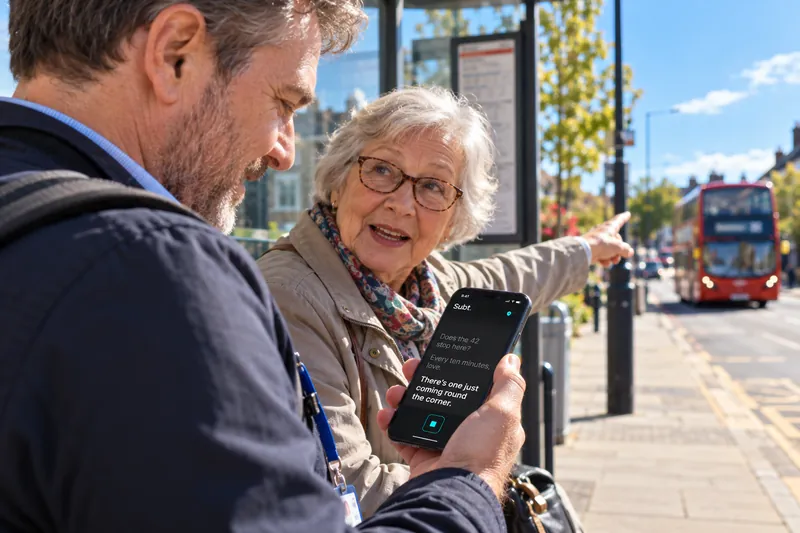
But a small panel isn't always ideal when two people are face to face. At reception, at a counter or sitting opposite a family member, you may want the words to take over the screen instead.
Subt is built for that moment. Open it, put the phone between you and the other person, and the words appear in very large type across the screen, with a Clear button when you want to start again. Nothing is saved; the free web version uses your browser's speech service, while the £1.99 iPhone app processes captions on-device.
Neither is automatically better. Apple Live Captions is excellent for calls and media; a face-to-face app can feel simpler when the phone itself is the conversation screen.
Use whichever suits the moment.
Why are my iPhone Live Captions getting words wrong?
Live captions aren't perfect.
Background noise, several people speaking at once, distance from the microphone, unfamiliar names and unclear speech all make transcription harder.
Move closer. Cut the noise. One person at a time.
Apple notes that Live Captions accuracy can vary and that it shouldn't be relied on in high-risk or emergency situations. For a medication name, address, appointment time or number, check it rather than assuming the caption is right.
Quick answers
Are Live Captions free on iPhone?
Yes. Live Captions is built into supported iPhones; there's nothing to buy.
Does Live Captions work in British English?
Yes. Apple's feature availability page lists English (United Kingdom) for Live Captions. Availability can change, so check that page for the latest.
Do I need an app for live captions on iPhone?
Not necessarily. If Apple's Live Captions does what you need, use it. To compare the options, see the best free live caption apps. A separate app helps when you want something more focused: full-screen text, very large words, one obvious button.